Sub-account permissions
After creating a sub-account, you can change its role, suspend it or delete it from the IAM page. Right-sized permissions give each teammate just what they need — fewer misclicks, smaller blast radius.
The four built-in roles
LANIT Cloud ships with 4 standard roles:
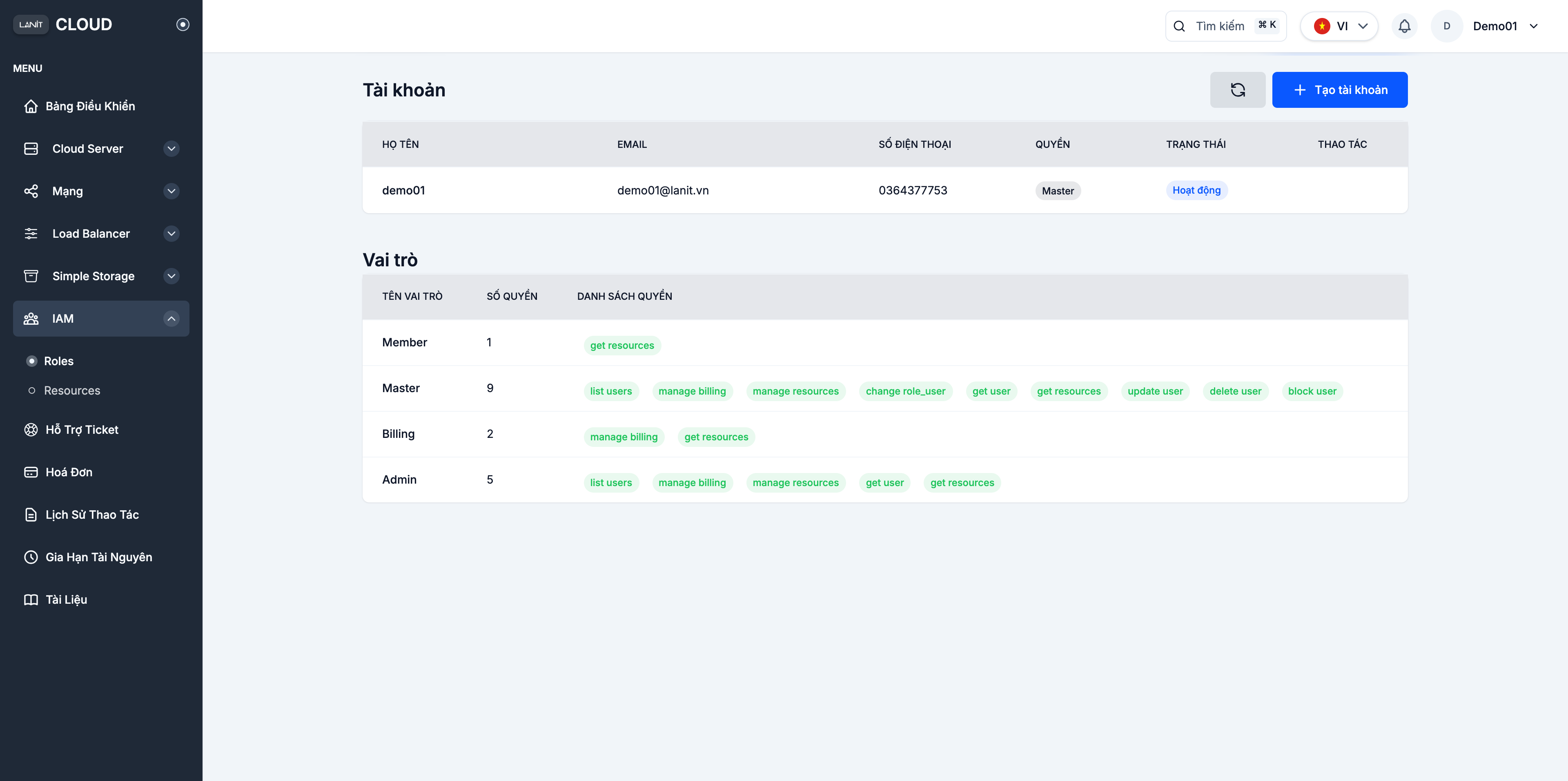
| Role | Permissions | Short description | Best fit |
|---|---|---|---|
| Member | 1 | Read-only resources | Interns, read-only users |
| Billing | 2 | Manage billing + read resources | Accounting, finance |
| Admin | 5 | Manage resources + billing + read users | DevOps lead, engineering |
| Master | 9 | Full access — including managing users and roles | Account owner, CTO |
Permission matrix
| Permission | Member | Billing | Admin | Master |
|---|---|---|---|---|
get resources (read VMs, networks, volumes…) | ✓ | ✓ | ✓ | ✓ |
manage billing (view/pay invoices) | – | ✓ | ✓ | ✓ |
get user (read user details) | – | – | ✓ | ✓ |
list users | – | – | ✓ | ✓ |
manage resources (create/edit/delete VMs, networks…) | – | – | ✓ | ✓ |
manage users (add/remove/block users) | – | – | – | ✓ |
change role (change another user's role) | – | – | – | ✓ |
Change a sub-account's role
Step 1. Open the action menu
Go to IAM. In the Accounts table, click ⋯ in the ACTIONS column for the user you want to edit.
The menu shows:
- Change permission — change the role.
- Block — temporarily suspend the user (keeps the account, blocks sign-in).
- Delete — permanently delete the user.
Step 2. Change the role
Pick Change permission → role picker dialog.
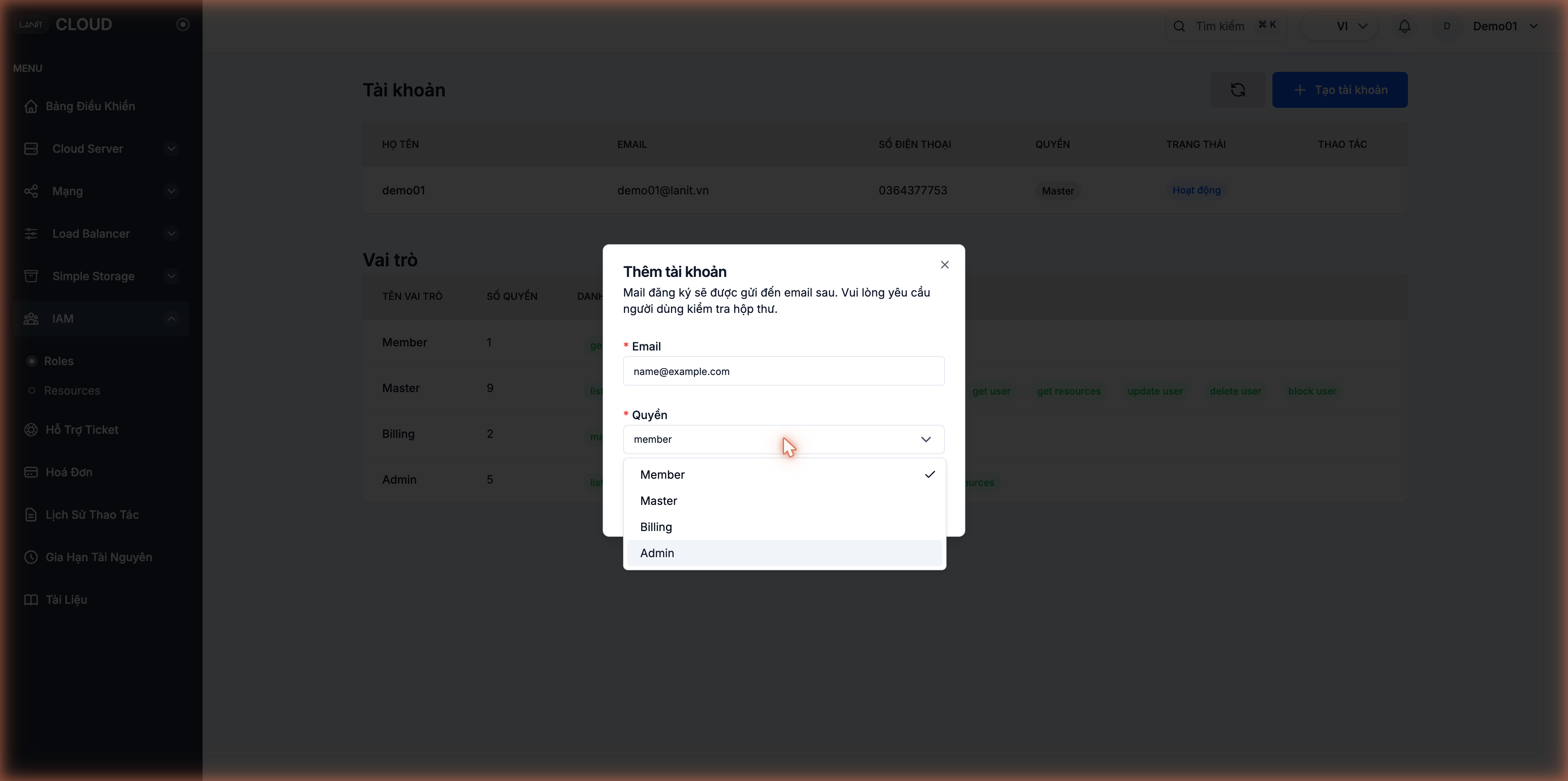
Pick the new role and click Confirm. It applies:
- Immediately for new API calls.
- On next sign-in for active sessions — the user should sign out and back in to pick up the change fully.
Suspend a sub-account
Use this when:
- A teammate is on long leave.
- You suspect the account is compromised — block it right away while investigating.
- You need a permission review before letting the user continue.
How
In the Accounts table, click ⋯ → Block → confirm.
The account switches to Blocked — it can't sign in. The user's data stays. Click ⋯ → Unblock to restore.
Delete a sub-account
Deleting an account is permanent. The account and all its related data are gone. If you only need to pause temporarily, use Block instead.
In the Accounts table, click ⋯ → Delete → confirm.
Least privilege
| Situation | Recommended role |
|---|---|
| Intern, new joiner | Member |
| Accounting handling invoices | Billing |
| Engineer creating/managing VMs | Admin |
| True admin who genuinely needs full access | Master |
General rules:
- Don't grant Master unless truly needed — Admin already covers every technical task.
- Review periodically (each quarter) — revoke rights from users who no longer need them.
- Off-board immediately — when a teammate leaves the org, block or delete the account the same day.
- Enable 2FA on every account — especially Admin and Master.
- Separate concerns — don't bundle accounting + DevOps + admin into one account; split by responsibility.
Resource-level assignments
IAM also has a Resources tab to assign specific resources (a server, a volume, a bucket…) to a sub-account with its own policy — finer-grained than the standard roles.
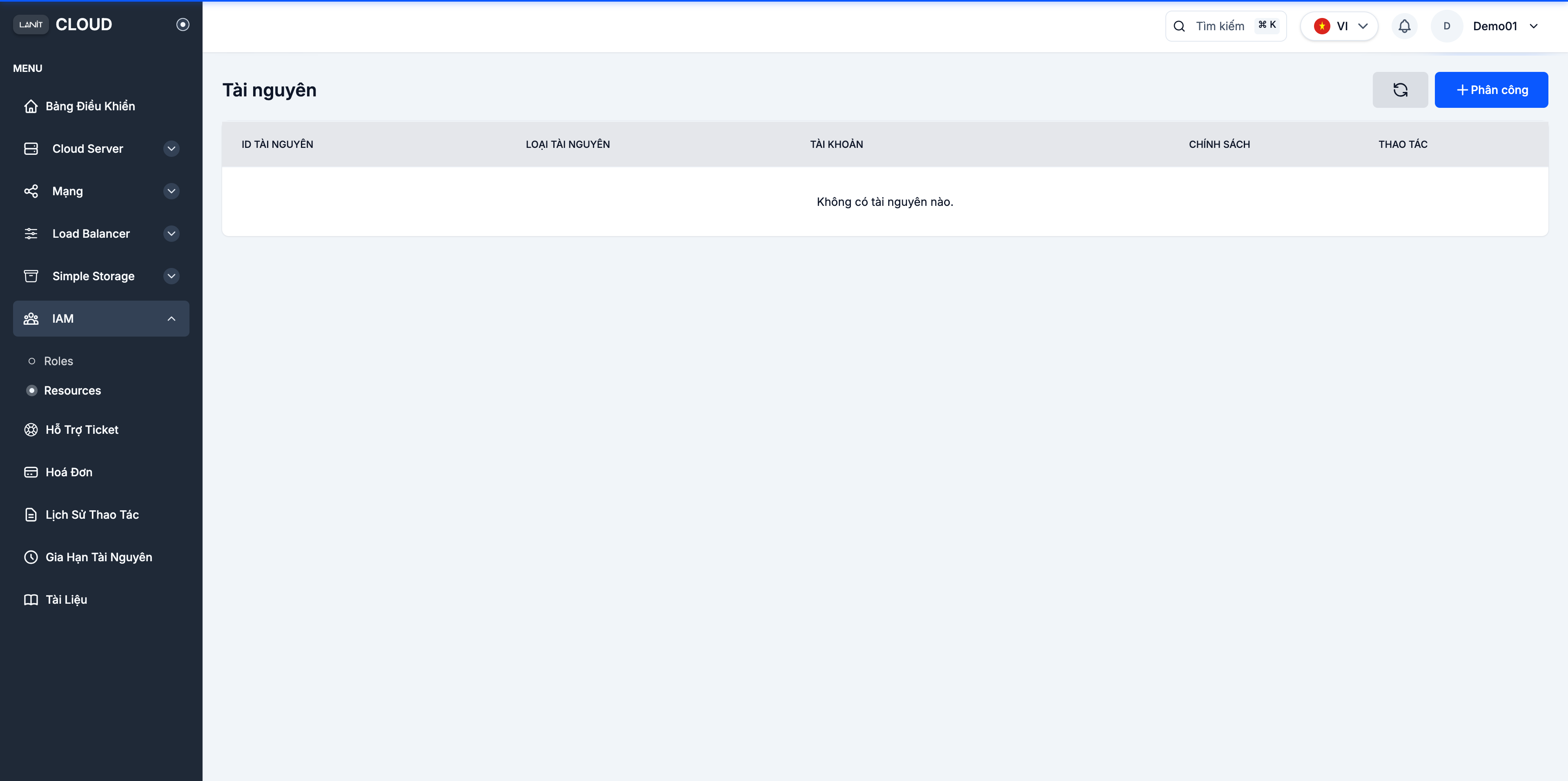
Open IAM → Resources → + Assign, pick the resource + user + policy. When you don't need this granularity, the standard roles are enough.
See also
- Add a sub-account — create a new user.
- 2FA security — enable 2FA on every user.