2FA security
Two-factor authentication (2FA) adds a second layer of security: even if the password leaks, an attacker still needs the 6-digit OTP from your phone to sign in.
LANIT Cloud uses standard TOTP — compatible with any authenticator app (Google Authenticator, Authy, 1Password, Microsoft Authenticator…).
- iOS: Google Authenticator or Authy / 1Password.
- Android: Google Authenticator or equivalent.
Enable 2FA
Step 1. Open the Account page
Sign in to the Portal. Click your name in the top-right corner → Account.
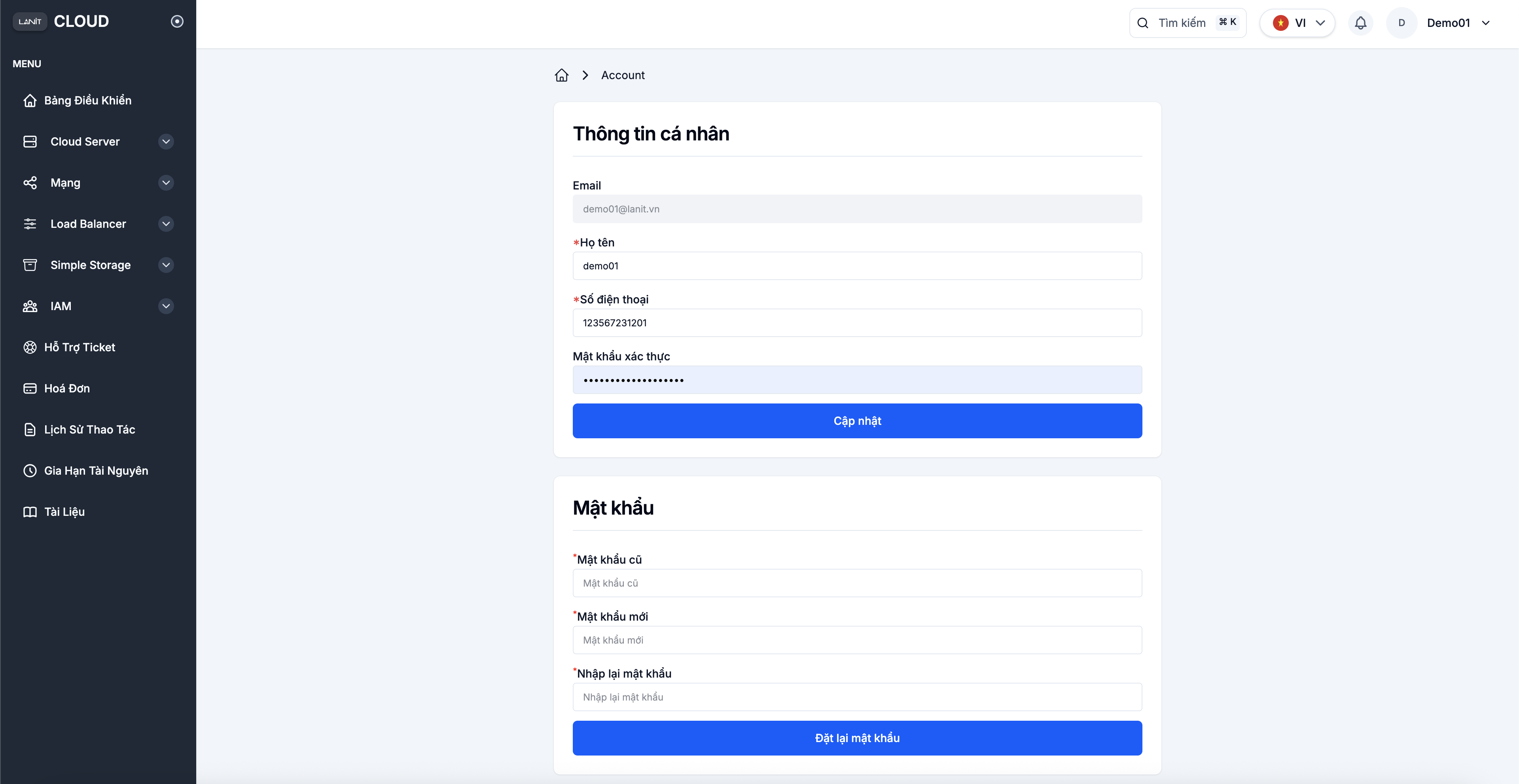
Step 2. Find the Two-factor authentication block
Scroll down to Two-factor authentication and click Enable 2-step verification.
Step 3. Add it to the authenticator app
The system shows a dialog with a QR code and a Secret key.
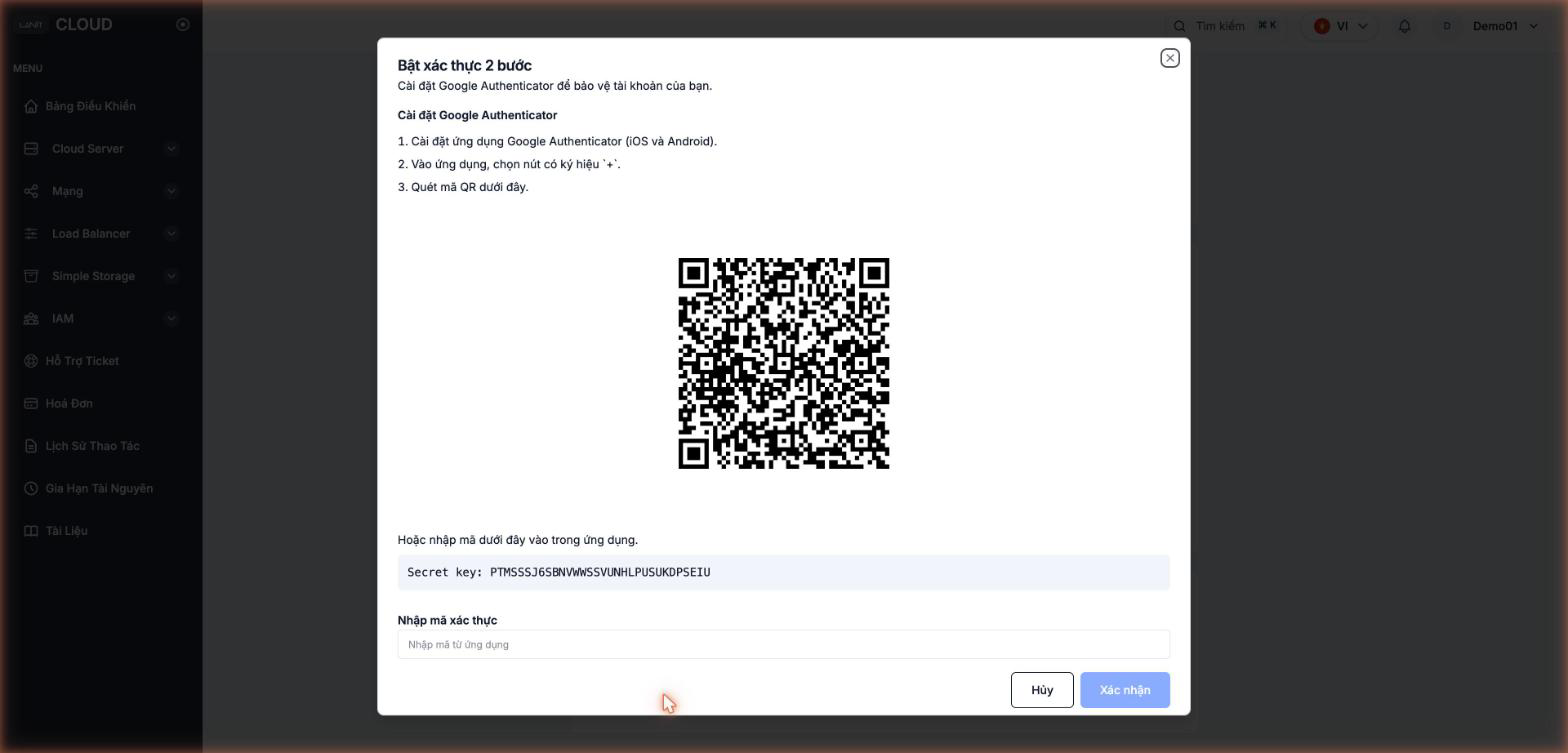
In the authenticator app:
- Scan the QR: tap + → Scan QR code → point the camera at the QR on the screen.
- Enter manually: tap + → Enter a setup key → type the Secret key shown below the QR.
The app shows a 6-digit code that refreshes every 30 seconds.
Copy the Secret key and save it to a password manager (1Password, Bitwarden…) or a safe place as soon as it appears. If you lose the phone or uninstall the app, the Secret key is the only way to recover access — LANIT cannot bypass 2FA for you.
Step 4. Confirm the OTP
Enter the current 6-digit code from the app into Enter verification code, then click Confirm.
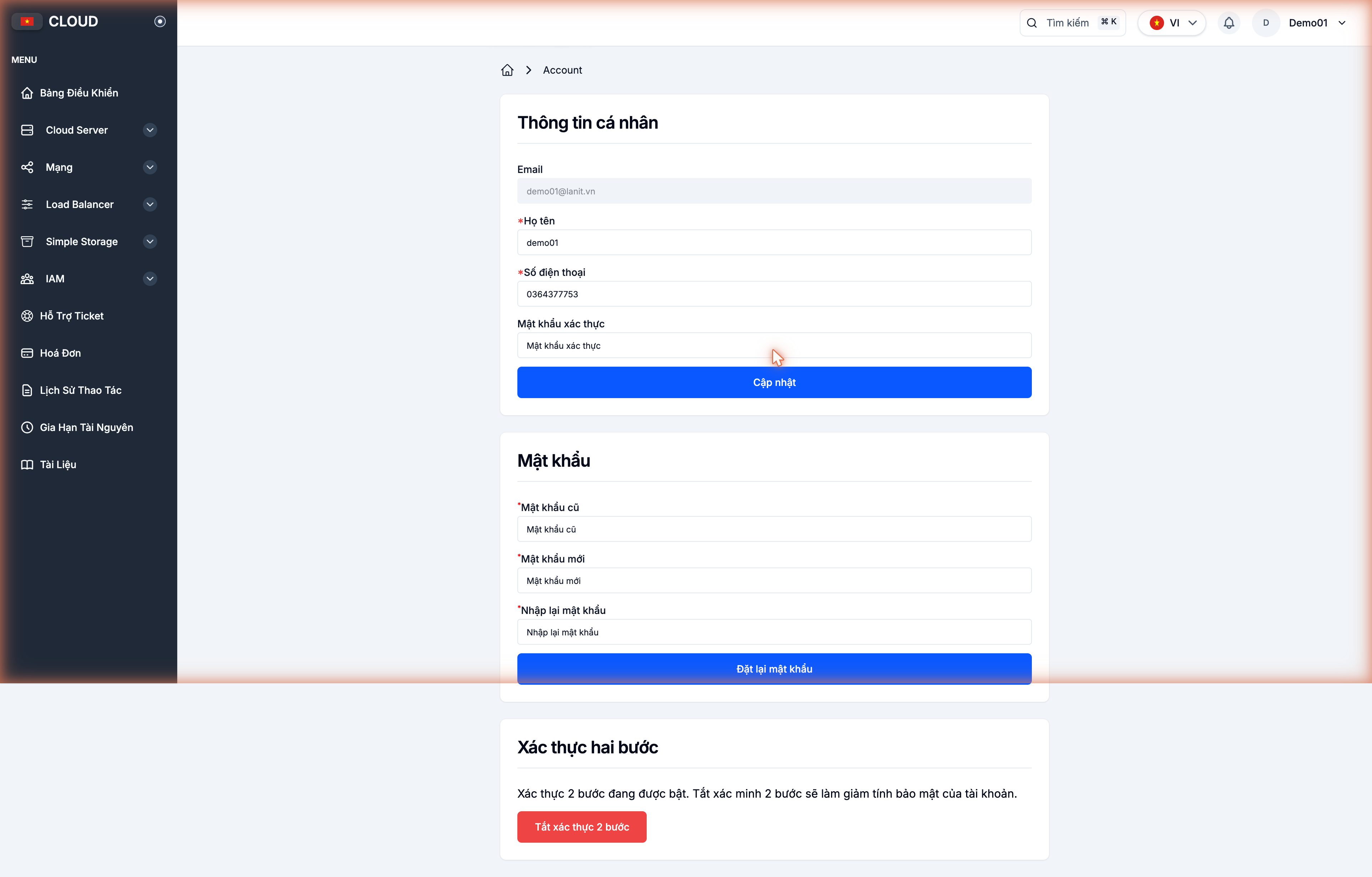
Once accepted, 2FA is on. Every future sign-in requires an OTP. When 2FA is on, the button now reads Disable 2-step verification.
Sign in with 2FA on
- Go to the sign-in page.
- Enter the email and password.
- The system asks for the OTP — open the authenticator app, read the current 6-digit code.
- Type the code and click Confirm.
Disable 2FA
Go back to Account → Two-factor authentication → Disable 2-step verification. The system asks for the current OTP to confirm.
Don't disable 2FA on the master account. Only turn it off temporarily when changing phones; turn it back on as soon as the new app is set up.
Recover after losing the phone
If you still have the saved Secret key:
- Install the authenticator app on the new phone.
- Tap + → Enter a setup key → paste the Secret key.
- The app generates new OTPs — use them to sign in as usual.
If the Secret key is gone too: open a Support Ticket in the Portal or contact LANIT support to verify your identity and request a 2FA reset. This takes time — which is why you should keep the Secret key safe.
Security recommendations
- Enable 2FA on every account that can access the Portal — master and sub-accounts.
- Use an authenticator app with multi-device / cloud sync (Authy, 1Password) so you don't lose the key when changing phones.
- Store the Secret key in a password manager — don't screenshot it into the default photos folder.
- Don't share OTP codes over chat, email or SMS — not even with anyone claiming to be LANIT support.