Configure the Load Balancer
After creating the Load Balancer, add a Listener + Pool + Members so it can distribute traffic. Open the detail page by clicking the Load Balancer name in the list.
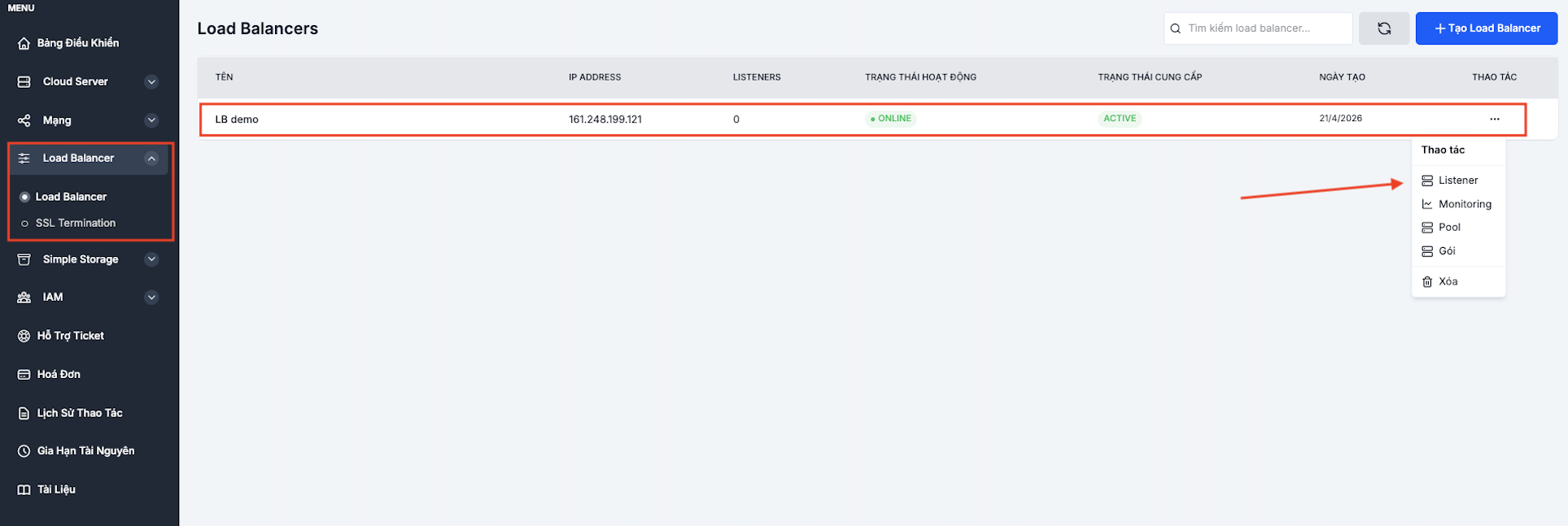
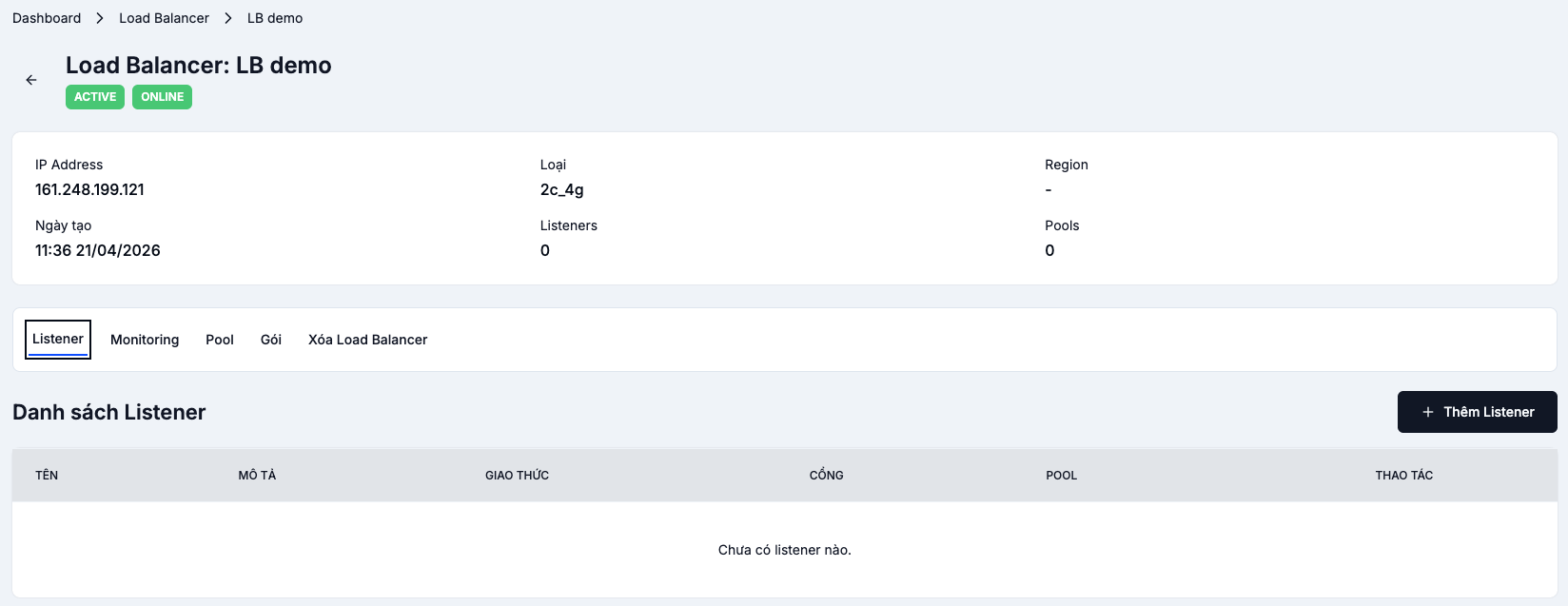
Listener
A Listener receives traffic on a given port + protocol and forwards it to a Pool.
Add a Listener
On the Listener tab → + Add Listener.
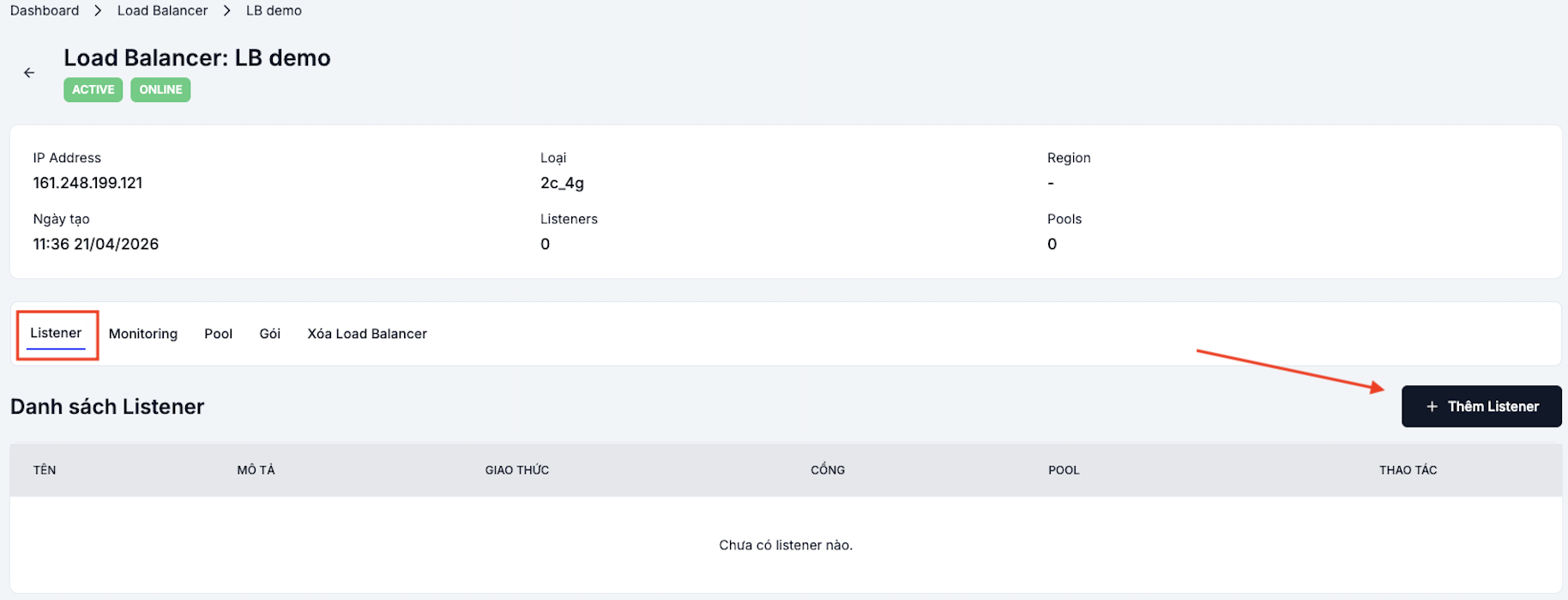
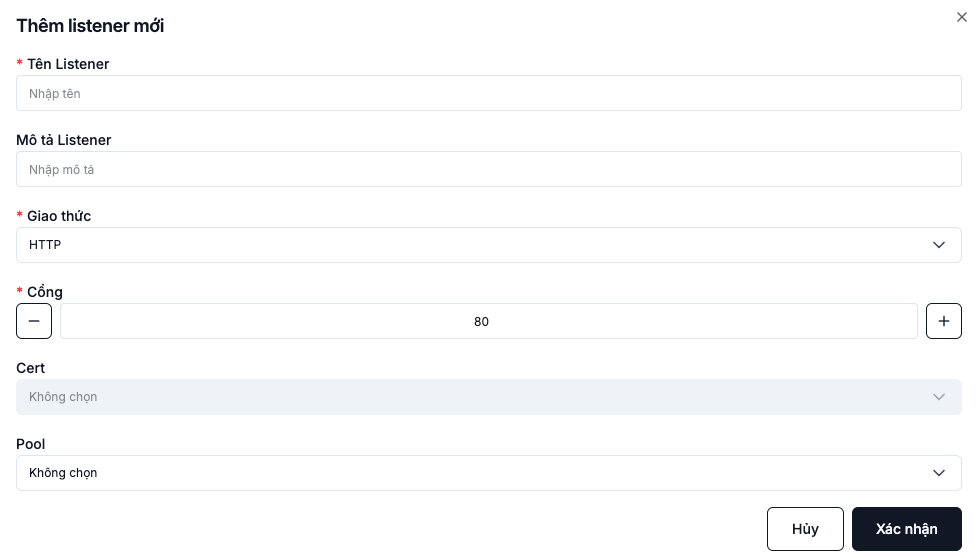
| Field | Meaning | Example |
|---|---|---|
| Listener name | Memorable name | http-80, https-443 |
| Protocol | HTTP, HTTPS, TCP, TERMINATED_HTTPS | HTTP |
| Port | Listening port | 80, 443, 8080 |
| SSL Certificate | Required when protocol = TERMINATED_HTTPS | – |
| Pool | Target Pool — can be created later and attached | – |
Which protocol should I pick?
| Protocol | When to use |
|---|---|
HTTP | Site/API without HTTPS |
HTTPS | TLS passthrough — backends terminate TLS themselves |
TERMINATED_HTTPS | Load Balancer decrypts TLS, backends receive plain HTTP (recommended) |
TCP | Non-HTTP workloads (MySQL, PostgreSQL, Redis…) |
When you pick TERMINATED_HTTPS, you must import the SSL certificate before creating the Listener.
Pool
A Pool is a group of backend VMs with the same role.
Add a Pool
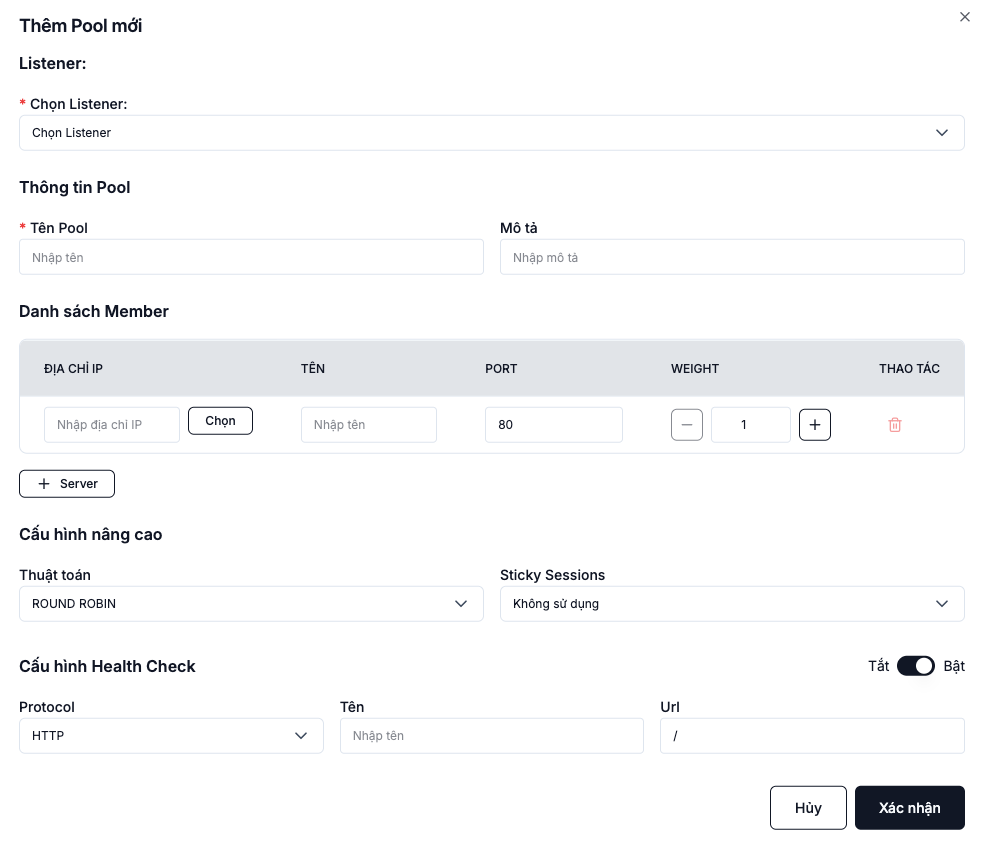
On the Pool tab → + Add Pool.

| Field | Meaning |
|---|---|
| Listener | The Listener that sends traffic to this Pool |
| Pool name | Memorable name (pool-web, pool-api) |
| Load Balancing Algorithm | Round Robin / Least Connections / Source IP |
| Health Check (optional) | Probe to detect failed members |
Load-balancing algorithms
| Algorithm | How it works | When to use |
|---|---|---|
| Round Robin | One after another, round-robin | Default; uniform workloads |
| Least Connections | Favours the member with the fewest live connections | Requests with varying processing time |
| Source IP | Same client IP → same member | Simple sticky sessions |
Health check
The Health Check periodically probes each member. Members that fail are temporarily removed from the pool until they recover.
Common parameters:
- Type:
HTTP/TCP - URL:
/health(for HTTP) - Interval: 5–10 seconds
- Timeout: 2–5 seconds
- Max retries: 3
Member
A Member is a specific backend VM inside the Pool.
Manage members
Pool tab → click ⋯ next to the Pool → Servers.
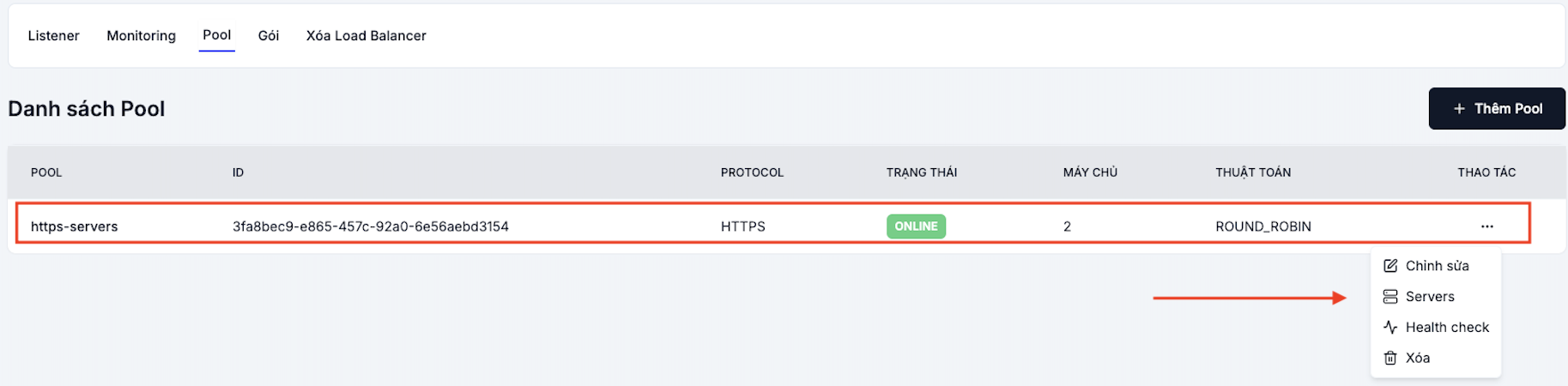
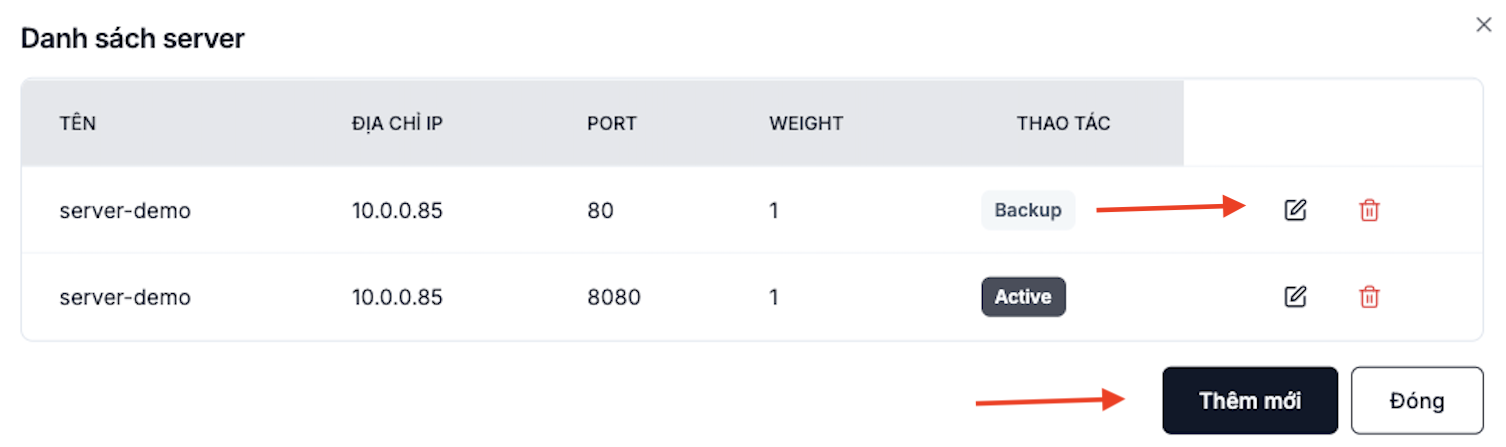
Each member needs:
- IP Address — the backend VM's internal IP.
- Port — the port the backend is listening on (
80,8080…). - Weight — distribution weight (default
1; give stronger backends a higher weight).
Edit a member
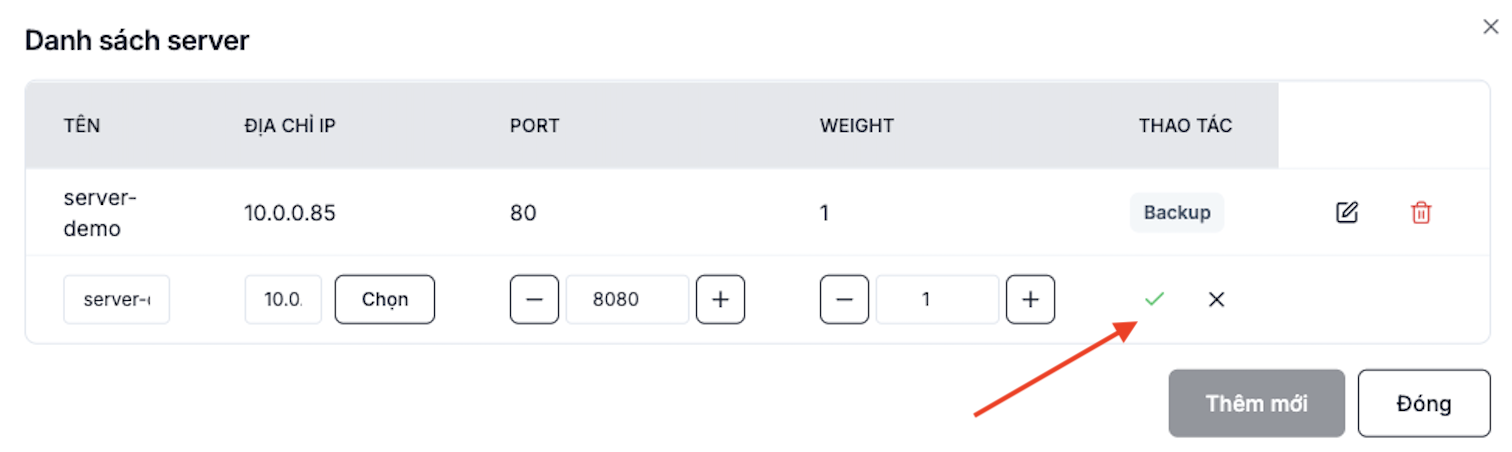
Add or remove a member
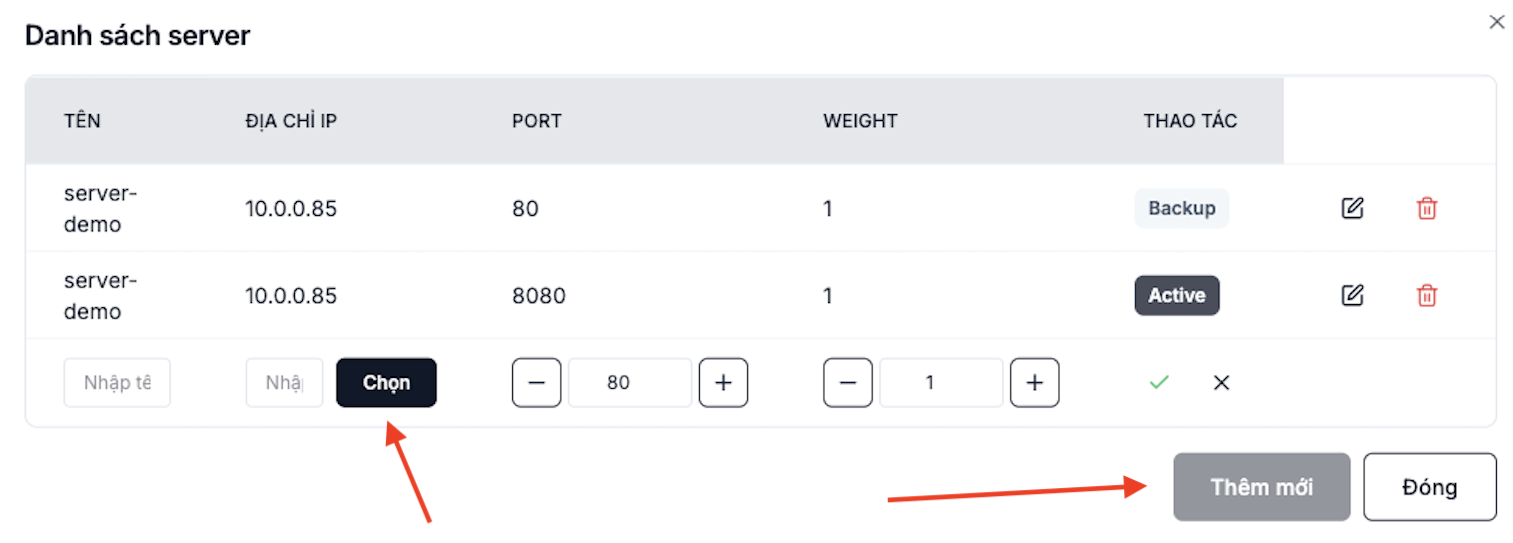
When deploying a new version, set weight = 0 on the member to drain it instead of removing it abruptly. In-flight connections finish; new connections go to other members.
Import an SSL certificate
Needed when the Listener uses TERMINATED_HTTPS.
Step 1. Open the SSL Certificate page
Go to Load Balancer → SSL Certificate and click + Create Certificate.

Step 2. Paste the certificate contents
| Field | Contents |
|---|---|
| Name | Memorable name (example-com-2026) |
| Certificate | Contents of the .crt / .pem file |
| Intermediate Certificate (optional) | Intermediate CA chain |
| Private Key | The matching private key |
| Passphrase (optional) | If the private key is encrypted |
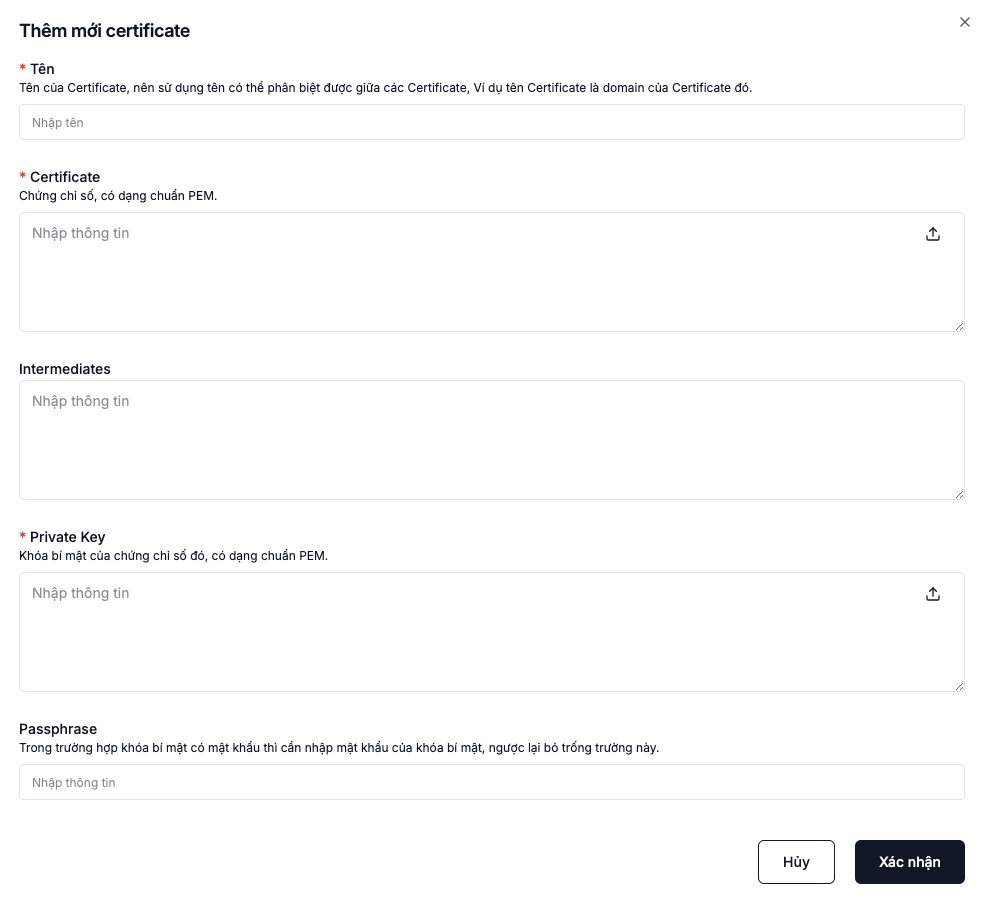
Click Confirm. The certificate is now available to pick when configuring a TERMINATED_HTTPS Listener.
The private key is uploaded once — you cannot retrieve it later. Store the original in a password manager / vault before uploading. Never keep it in Git or on a shared drive.
Monitoring
Watch Load Balancer, Listener, Pool and per-Member performance in real time.
Monitoring tab → click Enable Monitoring.
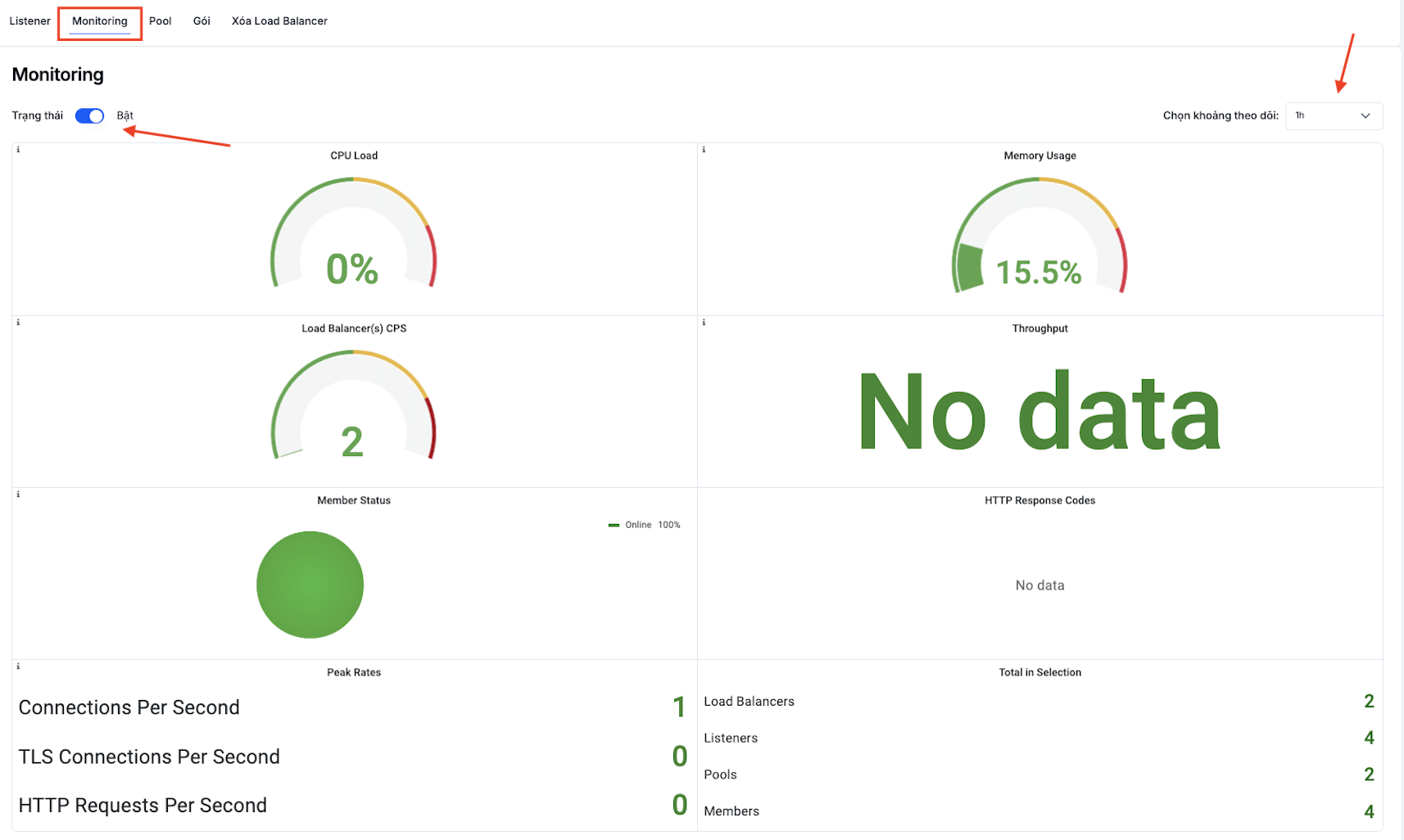
Typical metrics:
- Connections — current / new connections per second.
- Throughput — Mbps in/out.
- Member status — online / offline per health check.
- Response time — backend response latency.
Change the Load Balancer plan
When demand grows, upgrade the Load Balancer plan.
Configuration tab → pick a new plan → click Change plan.
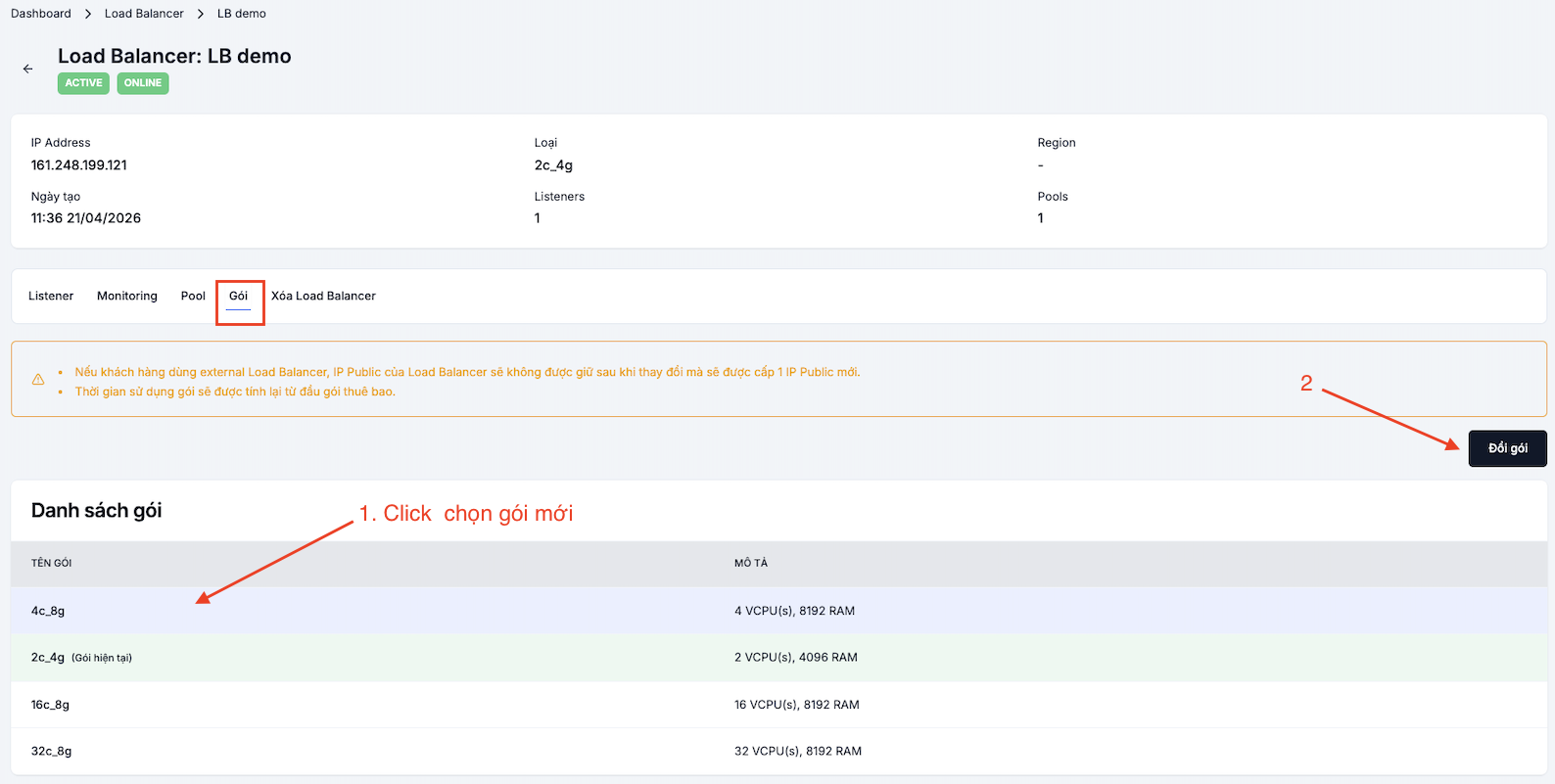
For a Public Load Balancer, the Public IP may change after a plan change. Update DNS A/AAAA records if a domain points at the old IP. Plan ahead (lower the TTL before the change).
See also
- Create a Load Balancer — if you don't have one yet.
- Security Group — backends need to accept connections from the Load Balancer.
- Floating IP — backends don't need a Floating IP when they sit behind a Load Balancer.