SSH and Remote Desktop (RDP)
SSH is for Linux VMs, RDP is for Windows VMs. To connect from the Internet, the VM needs:
- A Floating IP attached — see Floating IP.
- A Security Group that opens the right port (22 for SSH, 3389 for RDP) — see Security Group.
Check the prerequisites
Get the Floating IP
Open the VM detail page. The Floating IP block shows the public IP attached.
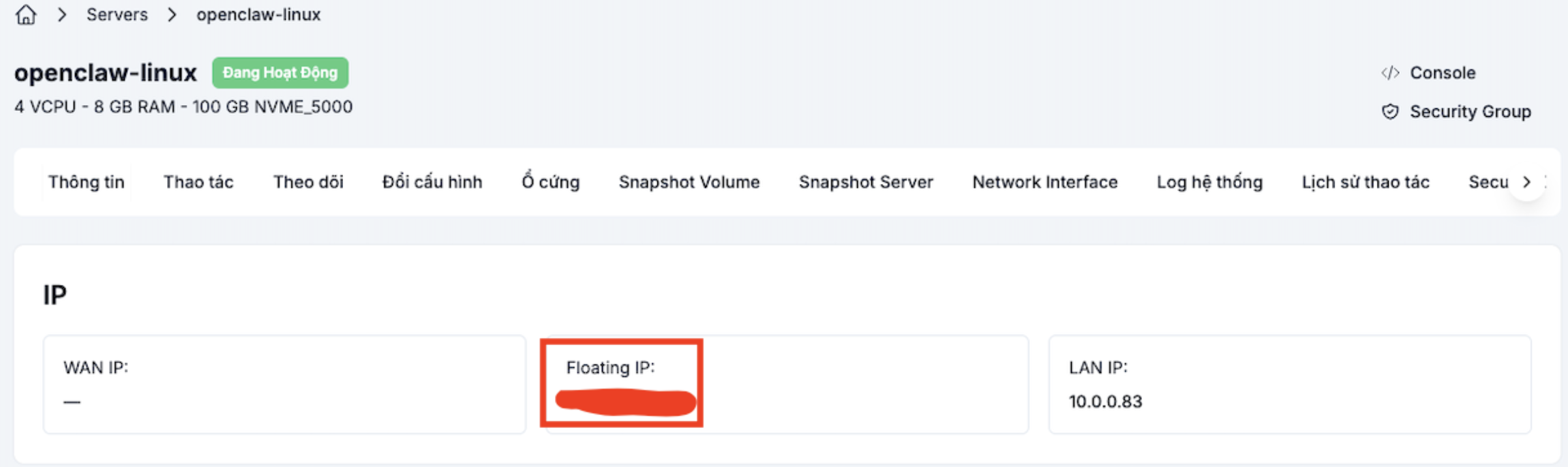
If the VM has no Floating IP yet, follow the Floating IP guide to attach one.
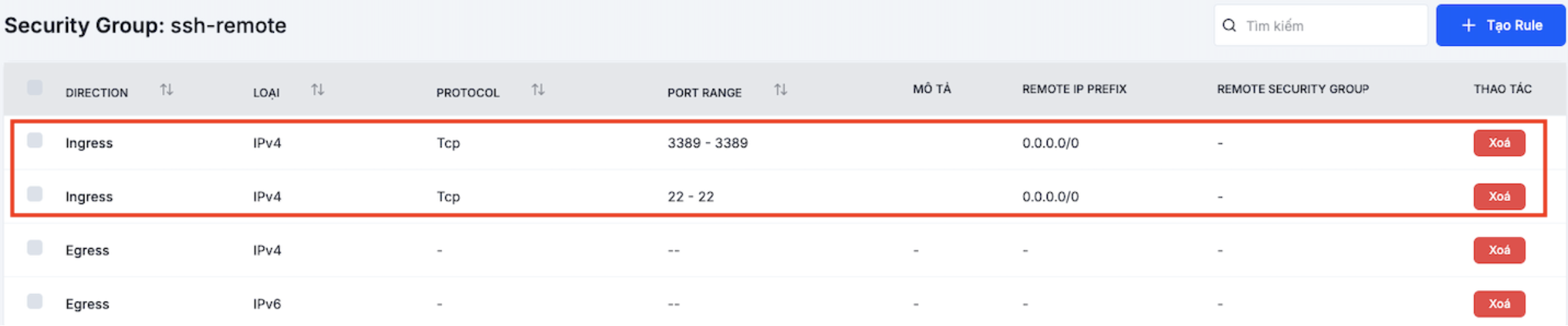
Verify the Security Group opens the right port
On the VM detail page, click the Security group button at the top right, and make sure there is a rule for:
- TCP 22 for SSH (Linux).
- TCP 3389 for RDP (Windows).
- The source should be restricted to your IP (
x.x.x.x/32) rather than left at0.0.0.0/0.

SSH (Linux)
rootEvery LANIT Cloud Linux image blocks direct SSH for the root user out of the box (PermitRootLogin no in /etc/ssh/sshd_config.d/*). Sign in with the default OS user (see the table below), then use sudo when you need root privileges.
Running ssh root@<ip> will always return Permission denied (publickey,password), even with the correct password or key.
Default username by OS
The default user is in the sudo / wheel group and signs in with the password or SSH key you set when creating the VM:
| Operating System | Username | Sudo |
|---|---|---|
| Ubuntu | ubuntu | sudo (NOPASSWD by default) |
| Debian | debian | sudo (NOPASSWD by default) |
| CentOS / AlmaLinux / Rocky Linux | centos / almalinux / rocky | wheel (NOPASSWD by default) |
If you connect with the wrong username, the system usually returns a hint with the correct one:

With a password
ssh <username>@<floating-ip>
# Example: ssh ubuntu@161.248.199.114
Enter the password when prompted.
With an SSH key
ssh -i ~/.ssh/<private-key> <username>@<floating-ip>
# Example: ssh -i ~/.ssh/id_ed25519 ubuntu@161.248.199.114
Make sure the private key file has 600 permissions:
chmod 600 ~/.ssh/id_ed25519
~/.ssh/config for convenience
Host my-server
    HostName 161.248.199.114
    User ubuntu
    IdentityFile ~/.ssh/id_ed25519
Then just run ssh my-server.
Running commands as root
After signing in as the default user, use sudo to run commands with root privileges — there is no need to drop into a root shell:
sudo apt update          # Ubuntu / Debian
sudo dnf update          # AlmaLinux / Rocky / CentOS Stream
sudo systemctl restart nginx
If you really need a one-off root shell (using sudo per command is still the safer default):
sudo -i        # root shell with root's full environment
# or
sudo su -      # equivalent
PermitRootLogin yesRe-enabling SSH for root significantly widens the brute-force attack surface. If you really must (for example, a legacy automation tool), create a dedicated SSH Key for root, set PermitRootLogin prohibit-password (key only, no password) instead of yes, and restrict the Security Group for port 22 to specific IPs.
Common errors
| Error | Cause | Fix |
|---|---|---|
Connection timed out | Security Group blocking / wrong IP | Check SG and Floating IP |
Permission denied (publickey,password) on ssh root@… | Root SSH blocked by default | Sign in as the OS user (ubuntu, centos…) and use sudo |
Permission denied (publickey) | Wrong SSH Key or wrong user | Check -i and <username> |
Host key verification failed | The IP changed owner | ssh-keygen -R <ip> then retry |
Too many authentication failures | Too many keys loaded via the agent | Add IdentitiesOnly yes to SSH config |
Remote Desktop (Windows)
Windows client
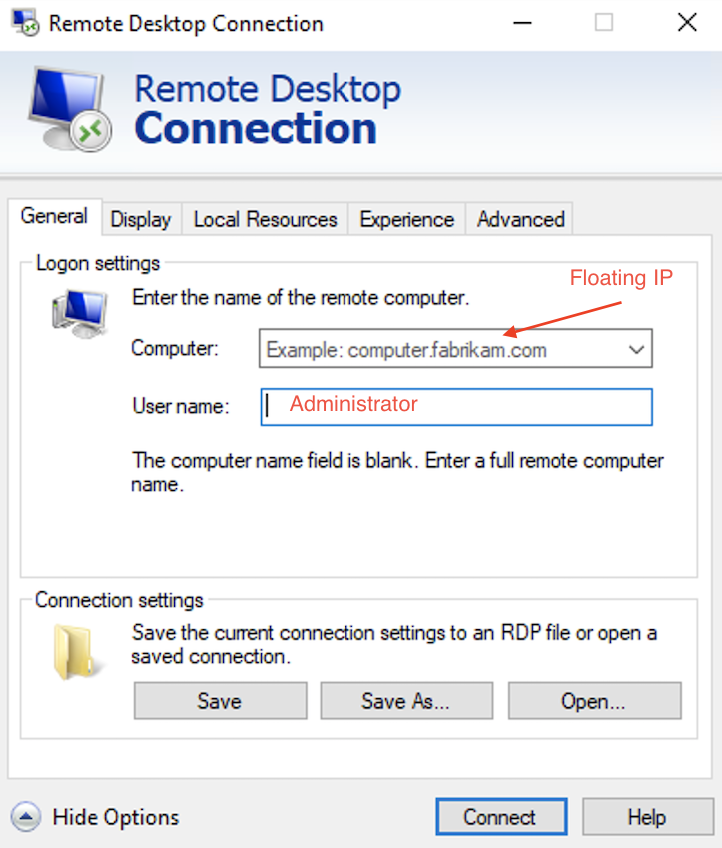
- Open Remote Desktop Connection (
mstsc) from the Start Menu. - Type the VM's Floating IP into Computer, click Connect.
- Sign in with:
macOS client
Download Microsoft Remote Desktop from the App Store, then add a PC with:
- PC name:
<floating-ip> - User account:
Administrator+ password
Linux client
Use xfreerdp:
xfreerdp /u:Administrator /p:<password> /v:<floating-ip>
Or install Remmina (apt install remmina) for a GUI client.
RDP exposed to the Internet is a frequent brute-force target. Recommended:
- Limit the Security Group for port 3389 to specific IPs / IP ranges.
- Use a strong Administrator password and rotate it regularly.
- Consider a VPN Gateway instead of opening RDP directly to the Internet.
See also
- Portal Console — when SSH/RDP cannot connect.
- Floating IP — assign a public IP to the VM.
- Security Group — open firewall ports.
- SSH Key — create and manage keys.