Last updated on
Reach a VM via the Portal Console
Portal Console opens a VNC session in the browser — interact with the VM directly with a keyboard, as if you were sitting in front of a physical screen. Traffic goes through LANIT's internal fabric — no Floating IP needed and no firewall port to open.
When to use the Console?
| Scenario | Console helps? |
|---|---|
| SSH/RDP can't connect (wrong firewall, lost network) | ✓ Only emergency option |
Debug the boot process (grub, initramfs) | ✓ See boot logs |
| Reset broken network configuration | ✓ Fix from the console |
| Forgot password / lost SSH Key | ✗ Use Change password |
| Copy a large file | ✗ Use scp / rsync over SSH |
| Paste long text | △ The console has limited support |
Steps
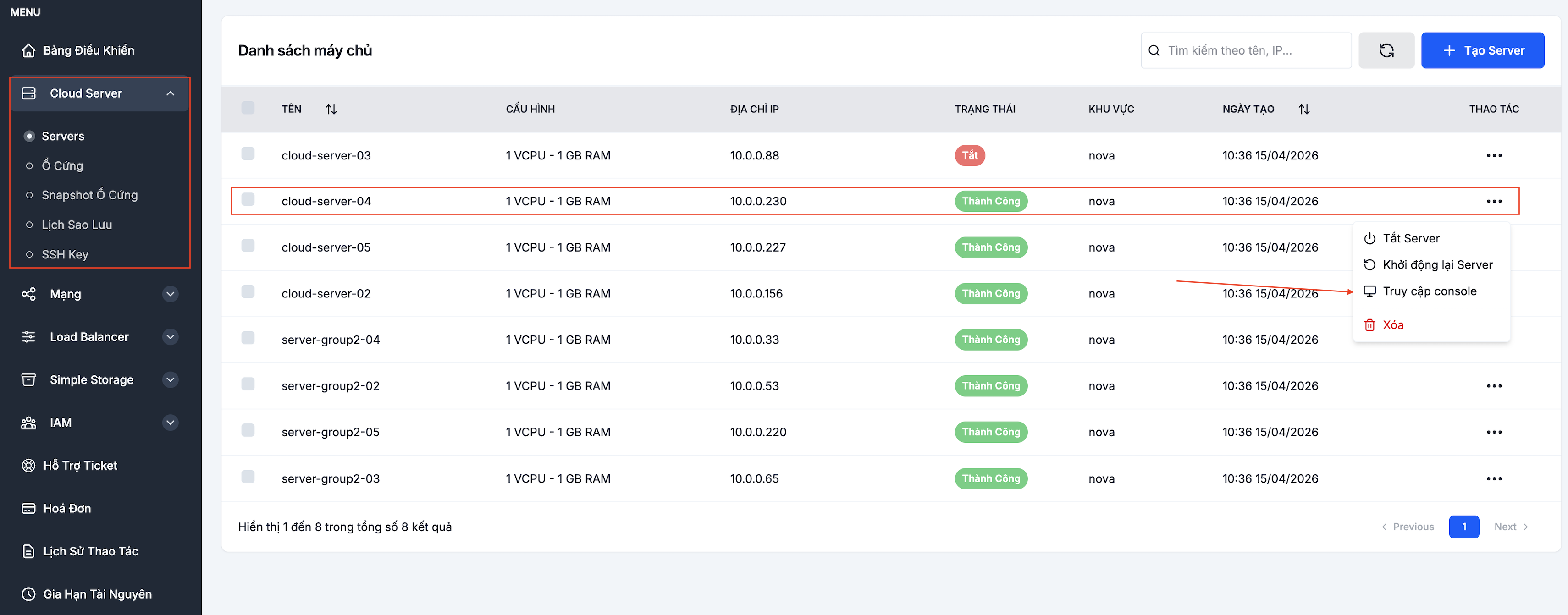
Step 1. Open the Console
Go to Cloud Server → Servers, click ⋯ next to the VM and pick Open console.
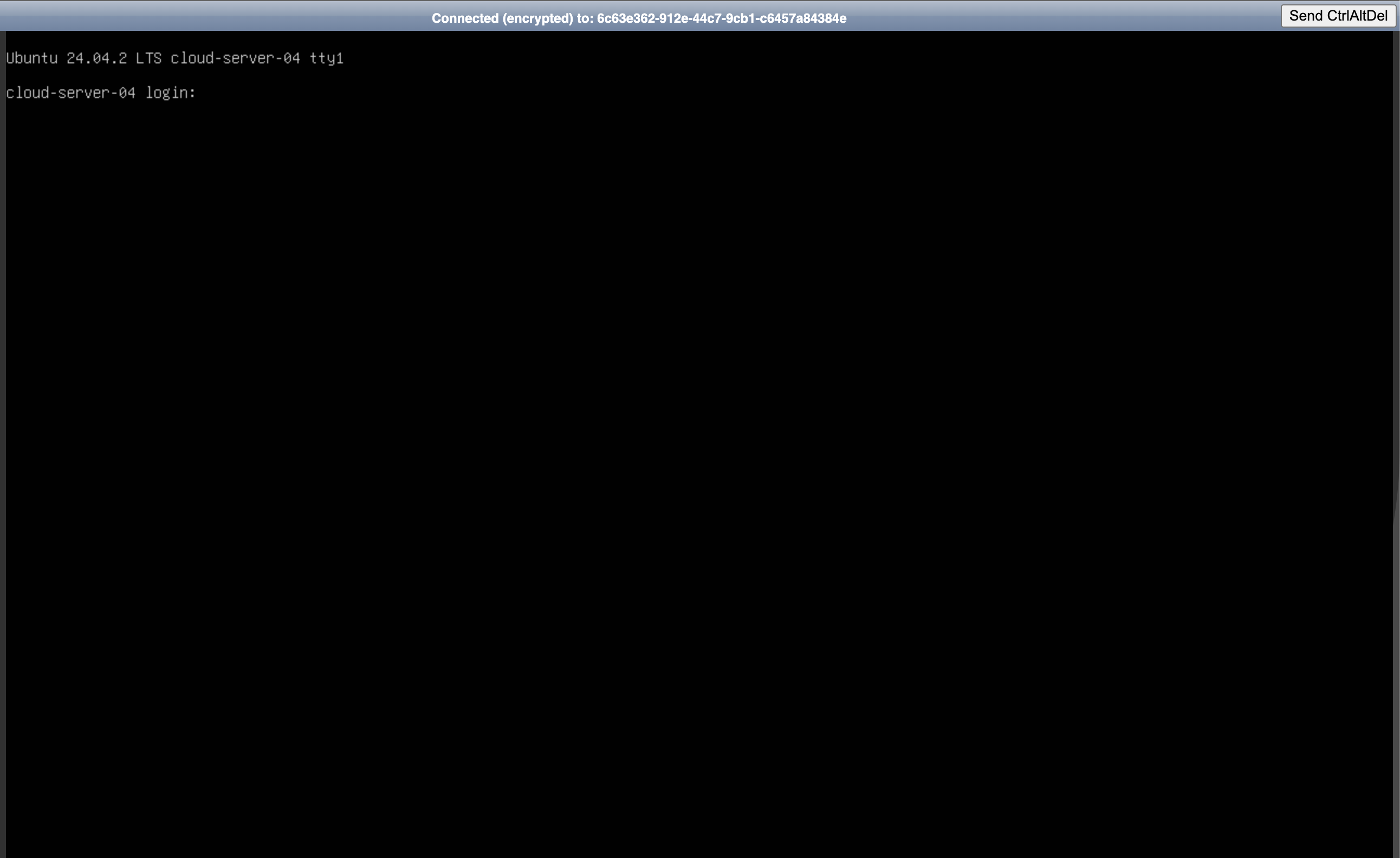
Step 2. Sign in from the console window
A new window opens with the OS screen. Type the username and password to sign in.
Emergency access recovery
The console is the last-resort access path when nothing else works. You can:
- Temporarily disable the OS firewall to troubleshoot a Security Group.
- Reset the network configuration (
netplan applyafter editing files). - Create a new sudo-capable user if the old account lost its privileges.
See also
- SSH / RDP — remote access when the VM has the right IP and Security Group.
- Change VM password — when you've forgotten the admin/root password.
- Rebuild from base image — when the OS is too broken to fix.