Last updated on
Detach a volume from a VM
Detaching a volume does not delete the data — it just separates the block device from the VM. The volume goes back to Available and can be attached to another VM.
Unmount inside the OS BEFORE detaching in the Portal
Detaching a mounted volume can hang I/O in the OS or lose unflushed writes. Always unmount in the OS first, then detach in the Portal.
Step 1. Unmount inside the OS
Linux
# 1. Check where the volume is mounted
mount | grep /dev/sdb

# 2. Sync and unmount
sudo sync
sudo umount /mnt/data

# 3. Remove the entry from /etc/fstab if you don't need it anymore
sudo nano /etc/fstab
If umount reports target is busy, find the process holding it open:
sudo lsof /mnt/data
sudo fuser -m /mnt/data
Windows
- Open Disk Management (
diskmgmt.msc). - Right-click the disk → Offline.
- Or right-click → Eject in File Explorer.
Step 2. Detach in the Portal
Go to Cloud Server → Volumes, click ⋯ next to the volume → Detach from server.
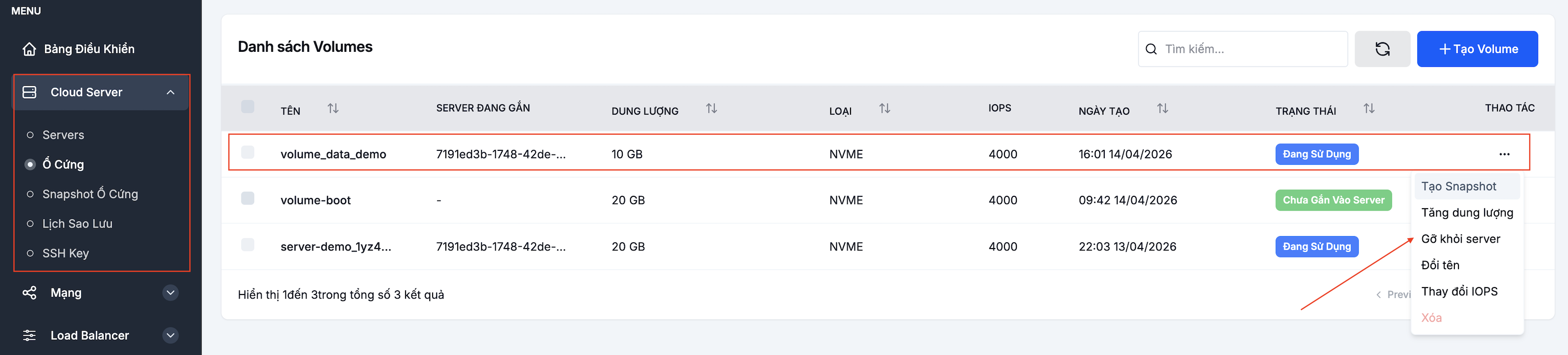
Confirm in the dialog.

The volume goes back to Available. You can:
- Attach it to another VM.
- Keep it as cold storage.
- Delete it if you no longer need it (deleting a volume deletes the data — there is no recovery).
System volumes cannot be detached
The system volume (the one with the OS) cannot be detached while the VM is running. To replace the system disk, use Rebuild from base image or create a new VM and migrate the data.
See also
- Attach a volume — reattach to another VM after detaching.
- Resize a volume — grow before reattaching if needed.
- Snapshot the volume — back up before deleting.