SSH Key
SSH Keys authenticate via a cryptographic key pair (public key / private key) — safer than passwords because they can't be brute-forced and the secret never travels over the wire. When you create a Linux VM, pick SSH Key instead of a password to shrink the attack surface.
SSH Key vs password
| SSH Key | Password | |
|---|---|---|
| Security | High — hard to brute-force | Lower — easy to guess |
| Automation | Great — CI/CD, scripts | Has to be stored in plaintext or typed |
| Many machines | One key reused across many VMs | One password per VM |
| Recovery on loss | Lose the private key, lose access | Can be reset |
Create an SSH Key in the Portal
Step 1. Open the SSH Key page
Go to Cloud Server → SSH Key and click + Create SSH Key.

Step 2. Name the key and (optionally) paste a Public Key
- Name — pick a memorable name (e.g.
laptop-ola,ci-deployer). - Public Key (optional) — paste an existing public key (format
ssh-rsa AAAA...orssh-ed25519 AAAA...).
Click Create.
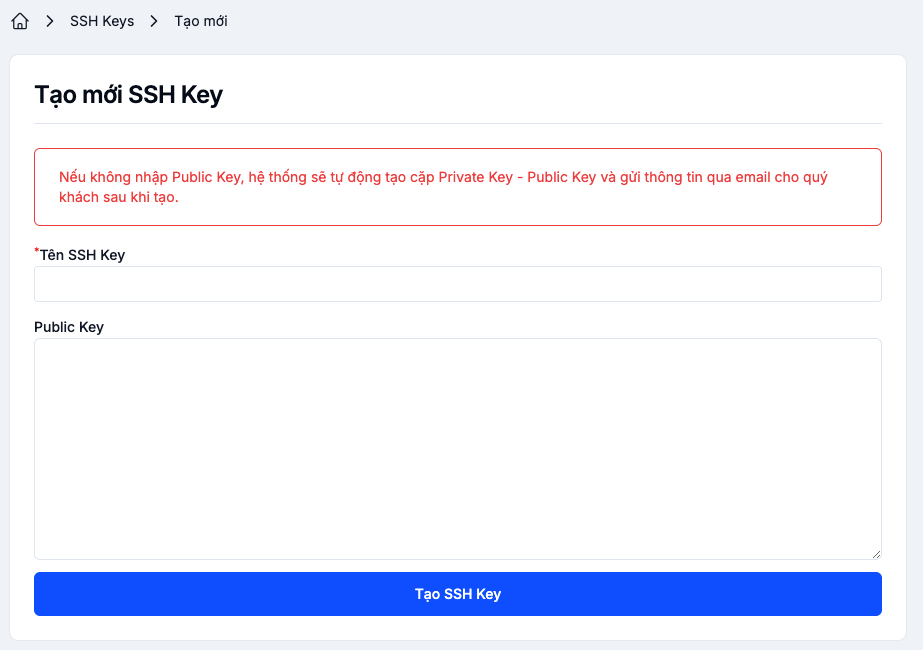
If you leave the Public Key field empty, the system generates the key pair and emails the Private Key to your registered address. Save it immediately to a safe place (~/.ssh/, password manager) — LANIT does not retain the private key after sending it.
Create the SSH Key on your local machine
The recommended path is to generate the key locally and upload only the public key to the Portal.
Linux / macOS
ssh-keygen -t ed25519 -C "your-email@example.com"
# Or use RSA 4096-bit when you need broad compatibility:
# ssh-keygen -t rsa -b 4096 -C "your-email@example.com"

cat ~/.ssh/id_ed25519.pub   # Public key — paste into the Portal
Windows (PowerShell)
ssh-keygen -t ed25519 -C "your-email@example.com"
Get-Content $HOME\.ssh\id_ed25519.pub
Paste the public key contents into the Public Key field in step 2 above.
Sign in to a VM with the SSH Key
After attaching the SSH Key when you create a VM, connect from your local machine:
ssh -i ~/.ssh/id_ed25519 <user>@<vm-ip>
# Default user: ubuntu, centos, almalinux, rocky, etc. — depends on the image
See SSH/RDP for the full details.
Manage SSH Keys
The Cloud Server → SSH Key page supports:
- Copy Public Key — to reuse on other systems.
- Rename — update the friendly name.
- Delete — remove keys you no longer use.

Deleting an SSH Key in the Portal does not remove the public key that was already copied into ~/.ssh/authorized_keys on existing VMs. Those VMs still accept the matching private key.
To revoke access for real, SSH into each VM and remove the matching line from ~/.ssh/authorized_keys.
Security recommendations
- Prefer ed25519 over RSA when possible (shorter, stronger).
- Set a passphrase on the private key.
- Store the private key under
~/.ssh/with600permissions. - One key per person and per role — easier to revoke when needed.
- Never commit a private key to Git.